Developer Quickstart
The Quorum Developer Quickstart uses the Besu Docker image to run a private IBFT 2.0 network of Besu nodes managed by Docker Compose.
This tutorial runs a private network suitable for education or demonstration purposes and is not intended for running production networks.
The stack provided includes optional components and apps to enable you to immediately use your private network in a realistic way.
Prerequisites
- One of the following operating systems:
- Linux on x86_64 architecture
- macOS on an Intel processor (M1 processor not supported yet)
- Windows 64-bit edition, with:
- Windows Subsystem for Linux 2
- Docker desktop configured to use the WSL2-based engine
- Docker and Docker Compose
- Node.js version 12 or higher (while maintaining Hardhat compatibility)
- Hardhat
- cURL command line
- MetaMask
Allow Docker up to 4G of memory. Refer to the Resources section in Docker for Mac and Docker Desktop for details.
Generate the tutorial blockchain configuration files
To create the tutorial docker-compose files and artifacts, run:
npx quorum-dev-quickstart
Follow the prompts displayed to run Besu and logging with ELK. Enter n for Codefi
Orchestrate.
Start the network
To start the network, go to the installation directory (quorum-test-network if you used the default value) and run:
./run.sh
The script builds the Docker images, and runs the Docker containers.
Four Besu IBFT 2.0 validator nodes and a non-validator node are created to simulate a base network.
When execution is successfully finished, the process lists the available services:
*************************************
Quorum Dev Quickstart
*************************************
----------------------------------
List endpoints and services
----------------------------------
JSON-RPC HTTP service endpoint      : http://localhost:8545
JSON-RPC WebSocket service endpoint : ws://localhost:8546
Web block explorer address          : http://localhost:25000/
Prometheus address                  : http://localhost:9090/graph
Grafana address                     : http://localhost:3000/d/XE4V0WGZz/besu-overview?orgId=1&refresh=10s&from=now-30m&to=now&var-system=All
Kibana logs address                 : http://localhost:5601/app/kibana#/discover
Collated logs using Grafana Loki    : http://localhost:3000/d/Ak6eXLsPxFemKYKEXfcH/quorum-logs-loki?orgId=1&var-app=besu&var-search=

For more information on the endpoints and services, refer to README.md in the installation directory.
****************************************************************
- Use the JSON-RPC HTTP service endpoint to access the RPC node service from your dapp or from cryptocurrency wallets such as MetaMask.
- Use the JSON-RPC WebSocket service endpoint to access the Web socket node service from your dapp.
- Use the Web block explorer address to display the block explorer Web application.
- Use the Prometheus address to access the Prometheus dashboard. Read more about metrics.
- Use the Grafana address to access the Grafana dashboard. Read more about metrics.
- Use the Kibana logs address to access the logs in Kibana. Read more about log management.
- Use the Grafana Loki logs address to access the logs in Grafana. Read more about log management.
To display the list of endpoints again, run:
./list.sh
Congratulations, you are now running your private Besu network.
Next steps
Next, consider interacting with your network using the development testnet stack.
Run JSON-RPC requests
You can run JSON-RPC requests on:
- HTTP with
http://localhost:8545. - WebSockets with
ws://localhost:8546.
Run with cURL
This tutorial uses cURL to send JSON-RPC requests over HTTP.
Run with Postman
You can also run all the requests with the Besu Postman collection.
View the Besu JSON-RPC APIs documentation in the Postman format and obtain example requests in multiple coding languages.
Run in Postman
Click the following button to fork the collection and run requests directly on your local network.
 .
.
Download collection
Alternatively you can download the JSON collection file.
Request the node version
Run the following command from the host shell:
curl -X POST --data '{"jsonrpc":"2.0","method":"web3_clientVersion","params":[],"id":1}' http://localhost:8545/ -H "Content-Type: application/json"
The result displays the client version of the running node:
- Result example
- Result explanation
{
  "jsonrpc": "2.0",
  "id": 1,
  "result": "besu/v21.1.2/linux-x86_64/oracle_openjdk-java-11"
}
"jsonrpc" : "2.0"indicates that the JSON-RPC 2.0 spec format is used."id" : 1is the request identifier used to match the request and the response. This tutorial always uses 1."result"contains the running Besu information:v21.1.2is the running Besu version number. This may be different when you run this tutorial.linux-x86_64is the architecture used to build this version.oracle_openjdk-java-11is the JVM type and version used to build this version. This may be different when you run this tutorial.
Successfully calling this method shows that you can connect to the nodes using JSON-RPC over HTTP.
From here, you can walk through more interesting requests demonstrated in the rest of this section, or skip ahead to Create a transaction using MetaMask.
Count the peers
Peers are the other nodes connected to the node receiving the JSON-RPC request.
Poll the peer count using net_peerCount:
curl -X POST --data '{"jsonrpc":"2.0","method":"net_peerCount","params":[],"id":1}' http://localhost:8545/ -H "Content-Type: application/json"
The result indicates that there are four peers (the validators):
{
  "jsonrpc": "2.0",
  "id": 1,
  "result": "0x4"
}
Request the most recent block number
Call eth_blockNumber to retrieve the number of the
most recently synchronized block:
curl -X POST --data '{"jsonrpc":"2.0","method":"eth_blockNumber","params":[],"id":1}' http://localhost:8545/ -H "Content-Type: application/json"
The result indicates the highest block number synchronized on this node.
{
  "jsonrpc": "2.0",
  "id": 1,
  "result": "0x2a"
}
Here the hexadecimal value 0x2a translates to decimal as 42, the number of blocks received by the node so far,
about two minutes after the new network started.
Use a block explorer
You can use Chainlens Blockchain Explorer to analyze block information, contract metadata, transaction searches, and more.
In production networks, you must secure access to RPC nodes.
Clone the Chainlens GitHub repository:
git clone https://github.com/web3labs/chainlens-free
From the docker-compose directory, run the following command:
cd docker-compose
NODE_ENDPOINT=member1besu PORT=26000 docker-compose -f docker-compose.yml -f chainlens-extensions/docker-compose-quorum-dev-quickstart.yml up
Open http://localhost/ on your browser.
You’ll see the new initialization page while it boots up.
This may take 5–10 minutes for the all services to start and the ingestion sync to complete.
To stop all the services from running, run the following command from the docker-compose directory:
docker-compose down -v
Monitor nodes with Prometheus and Grafana
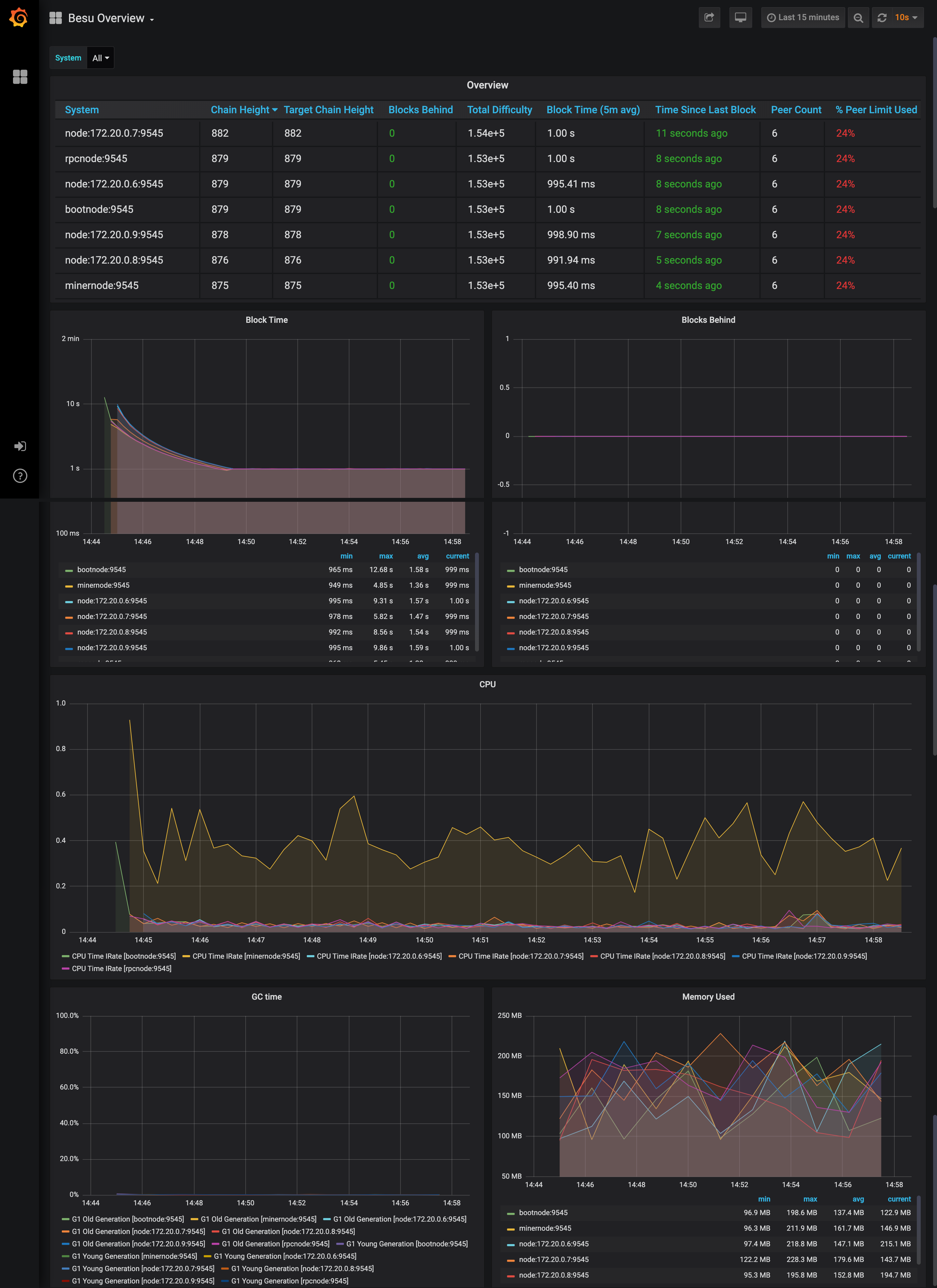
The sample network also includes Prometheus and Grafana monitoring tools to let you visualize node health and usage. You can directly access these tools from your browser at the addresses displayed in the endpoint list.
For more details on how to configure and use these tools for your own nodes, see the performance monitoring documentation, Prometheus documentation and Grafana documentation.
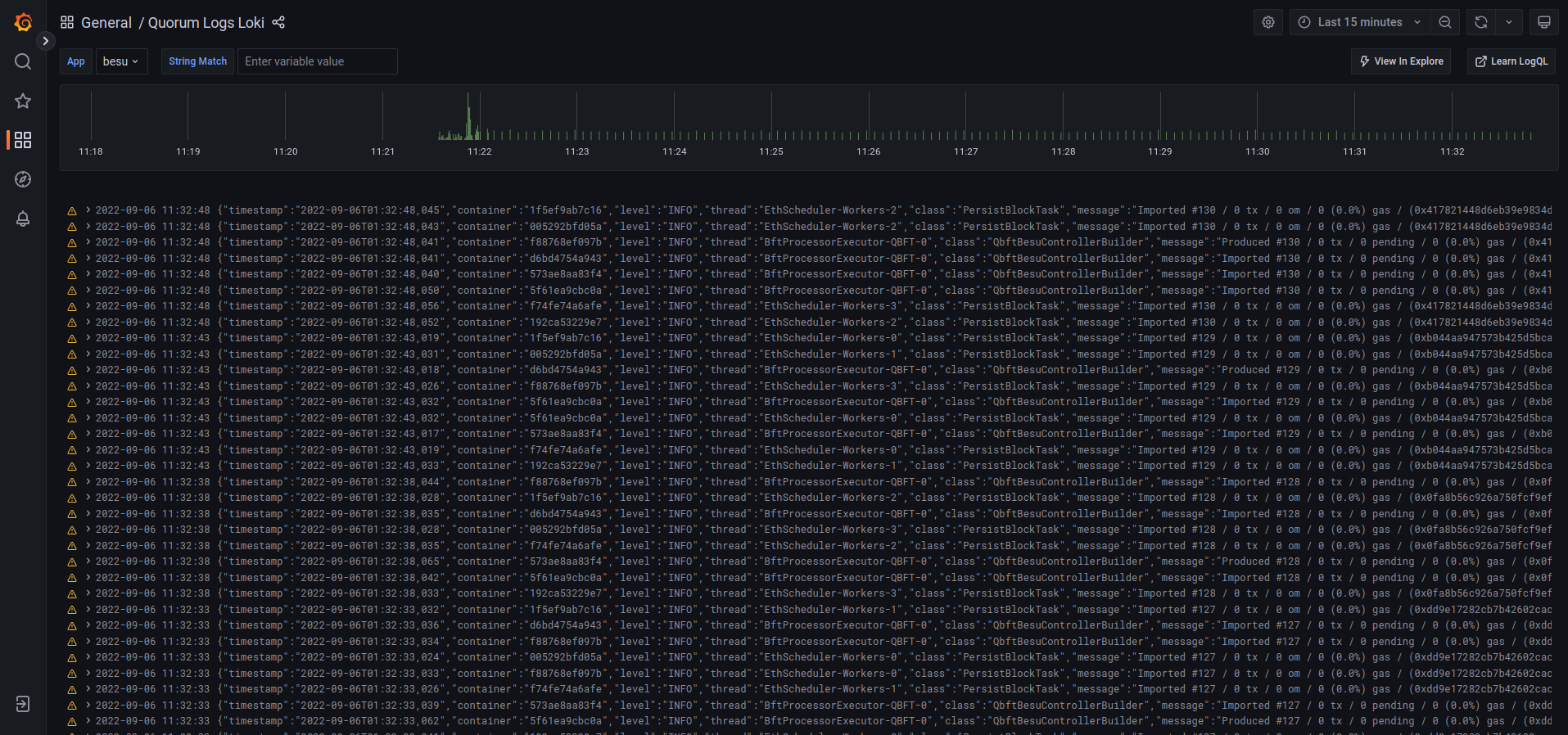
You can view collated logs via Grafana Loki:
Public transactions
Transact via smart contracts
These examples use the web3.js library to make the API calls, using the rpcnode
accessed on http://localhost:8545.
- Transfer ETH
- Get/set storage
- Increment counter
Navigate to the smart_contracts directory and deploy the eth_tx transaction:
cd smart_contracts
npm install --legacy-peer-deps
node scripts/public/hre_eth_tx.js
The output is as follows:
Account A has balance of: 90000
Account B has balance of: 0
create and sign the txn
sending the txn
tx transactionHash: 0x8b9d247900f2b50a8dded3c0d73ee29f04487a268714ec4ebddf268e73080f98
Account A has an updated balance of: 89999.999999999999999744
Account B has an updated balance of: 0.000000000000000256
Navigate to the smart_contracts directory and deploy the public transaction:
cd smart_contracts
npm install --legacy-peer-deps
node scripts/public/hre_1559_public_tx.js
# or via ethers
node scripts/public/hre_public_tx.js
This deploys the contract and sends an arbitrary value (47) from Member1 to Member3. The script then performs:
- A read operation on the contract using the
getfunction and the contract's ABI, at the specified address. - A write operation using the
setfunction and the contract's ABI, at the address and sets the value to123. - A read operation on all events emitted.
The script output is as follows:
{
  address: '0x2b224e70f606267586616586850aC6f4Ae971eCb',
  privateKey: '0xb3f2ab4d7bb07a4168432fb572ceb57fd9b842ed8dc41256255db6ff95784000',
  signTransaction: [Function: signTransaction],
  sign: [Function: sign],
  encrypt: [Function: encrypt]
}
create and sign the txn
sending the txn
tx transactionHash: 0x423d56f958a316d2691e05e158c6a3f37004c27a1ec9697cf9fed2a5c2ae2c2b
tx contractAddress: 0xB9A44d3BeF64ABfA1485215736B61880eDe630D9
Contract deployed at address: 0xB9A44d3BeF64ABfA1485215736B61880eDe630D9
Use the smart contracts 'get' function to read the contract's constructor initialized value ..
Obtained value at deployed contract is: 47
Use the smart contracts 'set' function to update that value to 123 ..
sending the txn
tx transactionHash: 0xab460da2544687c5fae4089d01b14bbb9bea765449e1fd2c30b30e1761481344
tx contractAddress: null
Verify the updated value that was set ..
Obtained value at deployed contract is: 123
Obtained all value events from deployed contract : [47,123]
The script hre_1559_public_tx.js deploys a Counter contract. You can read its value and
send increment transactions using a small Node script.
- Ensure the network is running. Save the following as
increment_counter.jsin yourquorum-test-networkfolder.
#!/usr/bin/env node
/**
 * Read Counter.getCount() (no tx) and optionally call incrementCounter() (signed tx).
 * Usage: node increment_counter.js [read|increment]
 * Override: COUNTER_ADDRESS=0x... RPC_URL=... PRIVATE_KEY=0x... node increment_counter.js [read|increment]
 */
const CONTRACT_ADDRESS = process.env.COUNTER_ADDRESS || "0x49f8866d90ffDa8B12AC5677966e963acEc6d80E";
const RPC_URL = process.env.RPC_URL || "http://127.0.0.1:8545";
const PRIVATE_KEY = process.env.PRIVATE_KEY || "0x60bbe10a196a4e71451c0f6e9ec9beab454c2a5ac0542aa5b8b733ff5719fec3";

const COUNTER_ABI = [
  { inputs: [], name: "getCount", outputs: [{ internalType: "int256", name: "", type: "int256" }], stateMutability: "view", type: "function" },
  { inputs: [], name: "incrementCounter", outputs: [], stateMutability: "nonpayable", type: "function" },
  { inputs: [], name: "decrementCounter", outputs: [], stateMutability: "nonpayable", type: "function" },
];

async function main() {
  const ethers = await import("ethers");
  const provider = new ethers.JsonRpcProvider(RPC_URL);
  const contract = new ethers.Contract(CONTRACT_ADDRESS, COUNTER_ABI, provider);
  const action = process.argv[2] || "read";

  if (action === "read") {
    const count = await contract.getCount();
    console.log("Counter.getCount() (no tx):", count.toString());
    return;
  }
  if (action === "increment") {
    const wallet = new ethers.Wallet(PRIVATE_KEY, provider);
    const contractWithSigner = contract.connect(wallet);
    const tx = await contractWithSigner.incrementCounter();
    console.log("Tx hash:", tx.hash);
    await tx.wait();
    const count = await contract.getCount();
    console.log("Counter after increment:", count.toString());
    return;
  }
  console.log('Usage: node increment_counter.js [read|increment]');
}
main().catch((err) => { console.error(err); process.exit(1); });
-
Ensure that ethers is available from the
smart_contractsfolder withnpm install ethers. -
From the
quorum-test-networkfolder run:
cd smart_contracts
node ../increment_counter.js read
node ../increment_counter.js increment
read— callsgetCount()only (no transaction, no signing).increment— sends anincrementCounter()transaction (signed with the script's built-in key).
The default contract address is the Counter deployed by hre_1559_public_tx.js. To use a different deployment,
set COUNTER_ADDRESS when running the script:
COUNTER_ADDRESS=0xYourCounterAddress node ../increment_counter.js read
Transact via MetaMask
Prerequisites
- Browser with MetaMask extension
You can use MetaMask to send a transaction on your private network.
- Open MetaMask and connect it to your private network RPC endpoint by selecting
Localhost 8545in the network list. - Choose one of the following test accounts and import it into MetaMask. by copying the corresponding private key:
The following accounts are test accounts and their private keys are publicly visible in this documentation and in publicly available source code.
They are not secure and everyone can use them.
Using test accounts on Ethereum Mainnet and production networks can lead to loss of funds and identity fraud.
In this documentation, we only provide test accounts for ease of testing and learning purposes; never use them for other purposes.
Always secure your Ethereum Mainnet and any production account properly.
See for instance MyCrypto "Protecting Yourself and Your Funds" guide.
0xfe3b557e8fb62b89f4916b721be55ceb828dbd73)"Private key to copy :
0x8f2a55949038a9610f50fb23b5883af3b4ecb3c3bb792cbcefbd1542c692be63
Initial balance : 200 Eth (200000000000000000000 Wei)
0x627306090abaB3A6e1400e9345bC60c78a8BEf57)"Private key to copy :
0xc87509a1c067bbde78beb793e6fa76530b6382a4c0241e5e4a9ec0a0f44dc0d3
Initial balance : 90000 Eth (90000000000000000000000 Wei)
0xf17f52151EbEF6C7334FAD080c5704D77216b732)"Private key to copy :
0xae6ae8e5ccbfb04590405997ee2d52d2b330726137b875053c36d94e974d162f
Initial balance : 90000 Eth (90000000000000000000000 Wei)
Besu doesn't incorporate account management. To create your own account, you have to use a third-party tool, such as MetaMask.
-
After importing an existing test account, create another test account from scratch to use as the recipient for a test Ether transaction.
-
In MetaMask, select the new test account and copy its address.
-
In the Block Explorer, search for the new test account by selecting the 🔍 and pasting the test account address into the search box.
The new test account displays with a zero balance.
-
Send test Ether from the first test account (containing test Ether) to the new test account (which has a zero balance).
tipYou can use a zero gas price here as this private test network is a free gas network, but the maximum amount of gas that can be used (the gas limit) for a value transaction must be at least 21000.
-
Refresh the Block Explorer page in your browser displaying the target test account.
The updated balance reflects the transaction completed using MetaMask.
Transact via a dapp
Prerequisites
- Browser with MetaMask extension
Use the demo dapp, QuorumToken which uses an ERC-20 token deployed to the network.
We'll use Hardhat, Ethers and MetaMask to interact with the network.
The dapps/quorumToken directory is structured in this manner (only relevant paths shown):
quorumToken
├── hardhat.config.ts       // hardhat network config
├── contracts               // the QuorumToken.sol
├── scripts                 // handy scripts eg: to deploy to a chain
├── test                    // contract tests
└── frontend                // dapp done in next.js
  ├── public
  ├── src
  ├── styles
  ├── tsconfig.json
Step 1: Deploy the contract
With the blockchain running, enter the quorumToken directory and run the following:
cd dapps/quorumToken
# install dependencies
npm install --legacy-peer-deps
# compile the contract
npm run compile
npm run test
# deploy the contract to the quickstart network
npm run deploy-quorumtoken
The output is similar to the following:
# compile
> quorumToken@1.0.0 compile
> npx hardhat compile

Generating typings for: 5 artifacts in dir: typechain-types for target: ethers-v6
Successfully generated 24 typings!
Compiled 5 Solidity files successfully

# test
> quorumToken@1.0.0 test
> npx hardhat test

  QuorumToken
    Deployment
      ✔ Should have the correct initial supply (1075ms)
      ✔ Should token transfer with correct balance (78ms)


  2 passing (1s)

# deploy
Contract deploy at: 0x5FbDB2315678afecb367f032d93F642f64180aa3
This will deploy the contract to the network and return the address. Save this address for step 3.
Step 2: Run the dapp
The dapp runs a local website using Next.js, and uses the contract in the previous step deployed on the network. Install and run with:
cd frontend
npm install --legacy-peer-deps
npm run dev
This starts the dapp, binding it to port 3001 on your machine.
> webapp@0.1.0 dev
> next dev -p 3001

- ready started server on [::]:3001, url: http://localhost:3001
- event compiled client and server successfully in 270 ms (18 modules)
- wait compiling...
- event compiled client and server successfully in 173 ms (18 modules)
Step 3: Connect to the dapp with MetaMask
3.1 With MetaMask connected to localhost on port 8545,
import the deployer account to
MetaMask using its private key.
To see the initial QuorumToken balance in the dapp, the MetaMask account must be the deployer account (the account used
when you ran npm run deploy-quorumtoken) in step 1. That deployer is the first account in the quickstart network config:
networks.quickstart.accounts[0] in dapps/quorumToken/hardhat.config.ts.
3.2 In the browser, open a new tab and navigate to the QuorumToken dapp.
Follow the prompt to connect to MetaMask and input the address from step 1. For example, our contract above
deployed to 0x5FbDB2315678afecb367f032d93F642f64180aa3.
Paste only the contract address following 0x to avoid triggering the dapps error handling loop.
The dapp will then read the balance of the ERC-20 token. You can now send funds to another address (any of the other test accounts) on the network, and MetaMask will prompt you to sign the transaction and will send it.
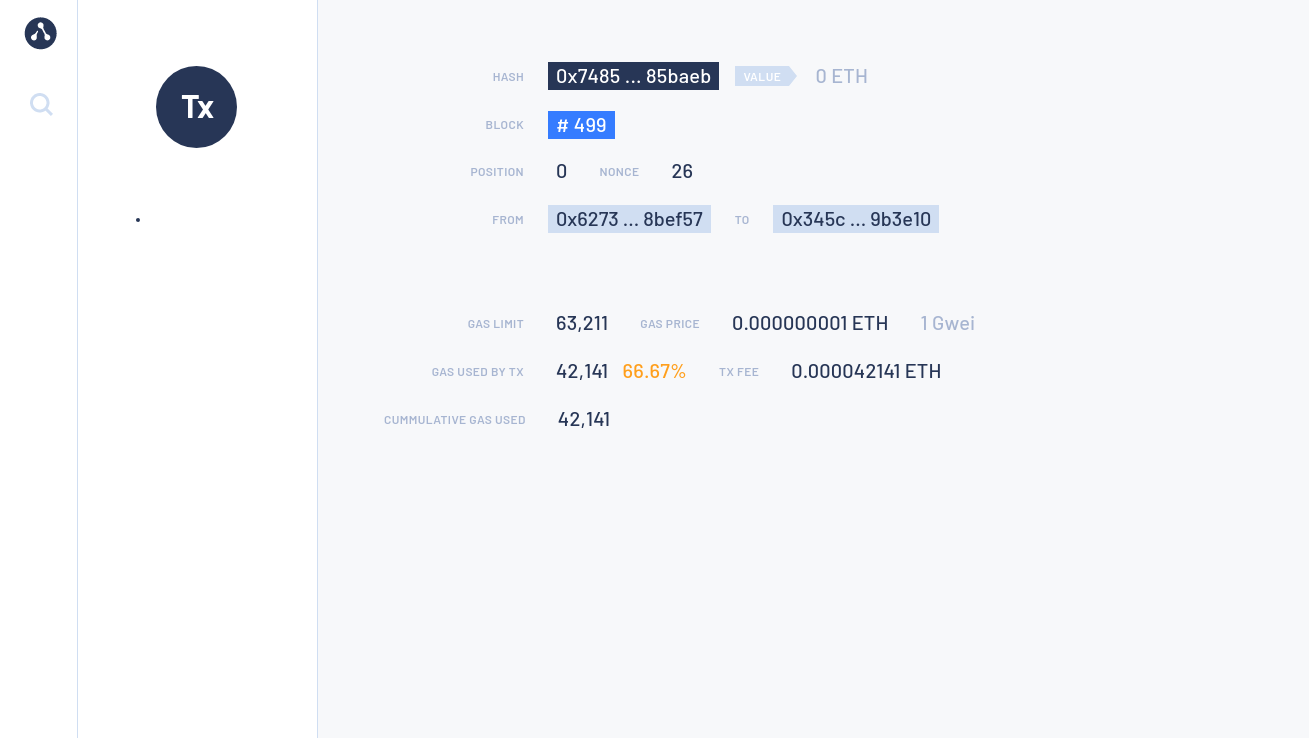
You can also search for the transaction and view its details in the Block Explorer.
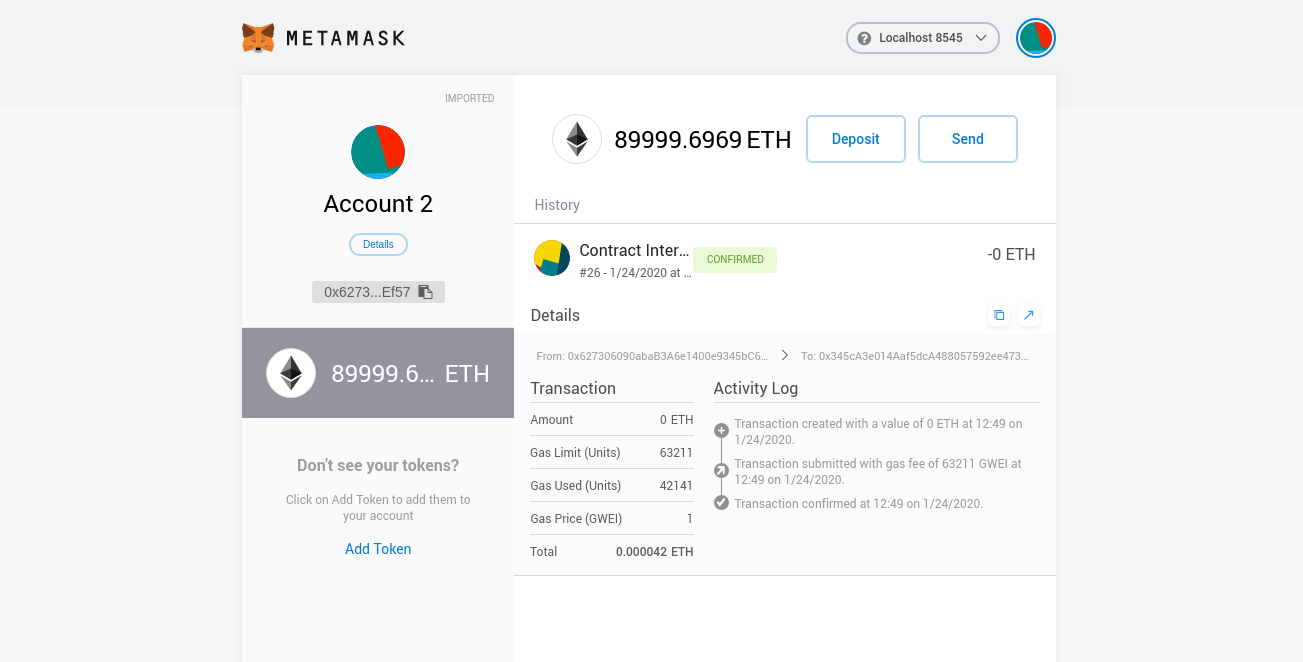
The MetMask UI also keeps a record of the transaction.
Deploy your own dapp
You can deploy your own dapp to the Quorum Developer Quickstart by configuring your dapp to point to the Quickstart network.
We recommend using Hardhat, and you can use the sample
hardhat.config.js to configure the networks object in the
Hardhat configuration file
to specify which networks to connect to for deployments and testing. The Quickstart's RPC service endpoint is http://localhost:8545.
For example, the following is the Hardhat configuration file for the QuorumToken dapp used in the Quickstart GoQuorum network:
module.exports = {
  networks: {
    // in built test network to use when developing contracts
    hardhat: {
      chainId: 1337
    },
    quickstart: {
      url: "http://127.0.0.1:8545",
      chainId: 1337,
      // test accounts only, all good ;)
      accounts: [
        "0x8f2a55949038a9610f50fb23b5883af3b4ecb3c3bb792cbcefbd1542c692be63",
        "0xc87509a1c067bbde78beb793e6fa76530b6382a4c0241e5e4a9ec0a0f44dc0d3",
        "0xae6ae8e5ccbfb04590405997ee2d52d2b330726137b875053c36d94e974d162f"
      ]
    }
  },
  defaultNetwork: "hardhat",
  ...
  ...
Deploy the contract using:
npx hardhat run ./scripts/deploy_quorumtoken.ts --network quickstart
Stop and restart the private network without removing containers
To shut down the private network without deleting the containers:
./stop.sh
This command stops the containers related to the services specified in the docker-compose.yml file.
To restart the private network:
./resume.sh
Stop the private network and remove containers
To shut down the private network and delete all containers and images created from running the sample network and the Pet Shop dapp:
./remove.sh
Add a new node to the network
New nodes joining an existing network require the following:
- The same genesis file used by all other nodes on the running network.
- A list of nodes to connect to; this is done by specifying bootnodes, or by providing a list of static nodes.
- A node key pair and optionally an account. If the running network is using permissions, then you need to add the new node's enode details to the permissions file used by existing nodes.
The following steps describe the process to add a new node to the Developer Quickstart.
1. Create the node key files
Create a node key pair and account for a new node by running the following script:
cd ./extra
npm install --legacy-peer-deps
node generate_node_keys.js --password "Password"
The --password parameter is optional.
2. Create new node directory
Navigate to the directory where the configuration files for the network were created.
The directory was specified in an earlier step when running npx quorum-dev-quickstart. The default location is
./quorum-test-network.
In the config/nodes directory, create a subdirectory for the new node (for example, newnode), and move the nodekey,
nodekey.pub, address and accountkey files from the previous step into this directory.
3. Update docker-compose
Add an entry for the new node into the docker-compose file:
newnode:
  <<: *besu-def
  container_name: newnode
  volumes:
    - public-keys:/opt/besu/public-keys/
    - ./config/besu/:/config
    - ./config/nodes/newnode:/opt/besu/keys
    - ./logs/besu:/tmp/besu
  depends_on:
    - validator1
  networks:
    quorum-dev-quickstart:
      ipv4_address: 172.16.239.41
Select an IP address and port map not being used for the other containers.
Mount the newly created folder ./config/nodes/newnode to the /opt/besu/keys directory of the new node, as seen
in this example.
4. Update Prometheus configuration
Update prometheus.yml in the ./config/prometheus/ directory to configure metrics to display in Grafana.
Insert the following under scrape_configs section in the file. Change job_name and targets appropriately if you've
updated them.
- job_name: newnode
  scrape_interval: 15s
  scrape_timeout: 10s
  metrics_path: /metrics
  scheme: http
  static_configs:
    - targets: [newnode:9545]
5. Update files with the enode address
Add the new node's enode address to the static nodes file and permissions file. The enode uses the format
enode://pubkey@ip_address:30303. If the nodekey.pub is 4540ea...9c1d78 and the IP address is 172.16.239.41, then the
enode address is "enode://4540ea...9c1d78@172.16.239.41:30303", which must be added to both files.
Alternatively, call the perm_addNodesToAllowlist API method on existing
nodes to add the new node without restarting.
Calling the API method by itself only persists for as long as the nodes remain online and is lost on the next restart.
On a live network, the new node must be added to the permissions file so that subsequent restarts of the nodes are aware of the change.
6. Start the network
Once complete, start the network up with ./run.sh. When using the smart contract you can either make changes via a
dapp or via
RPC API calls.